All posts by remotehelpexpert

Hacking That Affects Google

You may or may not have read in the news about this, but in case you haven’t, here it is. First, a couple of definitions.

Digital certificate: A file generated to verify the authenticity of a website, and to enable the ability to connect to it through a secure, encrypted connection. These certificates are issued by a CA (Certification Authority).

Recently, unidentified hackers were said to have stolen digital certificates from a Dutch company (a CA) called DigiNotar. Several sources reported this, but Vasco, a Chicago based company that recently acquired DigiNotar, has acknowledged the fact today. Apparently the hacking took place last month.

At the time and pretty much up until now, one of the stolen certificates could be used to impersonate Google websites, as part of a phishing or “man-in-the-middle” attack.

Over the past 24 hours Google, Microsoft and Mozilla (maker of the Firefox web browser) have taken steps to block the exploitation of the rogue certificate.

All supported editions of Windows Vista, Windows 7, Windows Server 2008, and Windows Server 2008 R2 use the Microsoft Certificate Trust List to validate the trust of a certificate authority. There is no action required for users of these operating systems because Microsoft has removed the DigiNotar root certificate from the Microsoft Certificate Trust List. Windows XP / Windows Server 2003 users however, beware.

What to do for Windows XP / Windows Server 2003 users

If Google Chrome is your browser of choice, update it to its latest version, which is 13.0.782.218.

Be on the alert for an update of Firefox and apply it when available, if that is the web browser of your choice. 9/3/11: Firefox 6.0.1 has now been released, fixing the vulnerability described in this article.

Be on the alert for a Windows update to help curb the threat.


Update on Updates

Here’s an update of the most critical programs to keep up to the latest version:

Windows:

A total of 12 bulletins are being released, as it is usual, on the second Tuesday of this month – So Tuesday the 9th. The 12 bulletins handle a total of 22 vulnerabilities found in the Windows operating system, Internet Explorer, and Office. If you have your computer(s) set to automatically receive and install updates, no user intervention is necessary except for a probable restart of the computer at the end of the updates.

Adobe Flash:

Latest version released is 10.3.181.34, for Internet Explorer and Firefox. For the Google Chrome web browser, Flash latest version is 10.3.181.36, and since it’s built into the browser, make sure you have the latest version of Google Chrome installed, 13.0.782.107.

Adobe PDF Reader:

The latest version released is 10.1.0.534.

Java:

Latest version released is 6, update 26.


As mentioned before, you can check Flash, PDF reader, Java and some other programs’ versions using the checker by Qualys, https://browsercheck.qualys.com/

Keeping your computer up-to-date is one of the cornerstones of a strong security setup.


Moving an integrated Outlook BCM/Office Accounting 2008, SQL Server 2005 database

Scenario: You use Outlook 2007 with Business Contact Manager, as well as Office Accounting Express 2008, and have integrated both databases. You want to move the integrated database to a new computer.

1. If you haven’t before, download and install Microsoft SQL Server Management Studio Express in the source computer.

2. Open the above. Connect to the database (by default MSSMLBIZ). Under Object Explorer, expand Databases.

3. Right click on MSSmallBusiness database, Tasks, Backup.

4. Select a full backup. Add a new location for the backup, and a filename. Click OK. Note: Change the “files of type” to all files, then type the name you want and navigate to the folder where you want to place your backup file.

6. Copy to the portable media of your choice to be able to access it on the target machine. Alternatively, copy it over the network if both computers are on the same LAN.

5. In the target machine, install Outlook 2007, BCM and Office Accounting 2008. Create a new company in Accounting. Run Outlook for the first time for initial setup, which includes creating a new database for BCM.

6. Integrate both databases. Do it from the Accounting program.

7. Download and install Microsoft updates for Office 2007 as needed.

8. Download and install Microsoft SQL Server Management Studio Express in the target machine.

9. Open, connect, right click on MSSmallBusiness database, Tasks, Restore, Database.

10. Click on “From Device” under “source and location of backup”.

11. Click on Options on the upper left of the restore window. Then check “Overwrite the existing database”.

12. Click OK. A few minutes later, you’re done.

Alternatively,

1. From Outlook or Accounting Express, backup the database in the source machine. Copy file to transferable media or over the network to a location in target machine.

2. Install Outlook with BCM and Accounting in the target machine.

3. Open Outlook and setup BCM.

4. Set up a new company in Accounting. Company name and legal name should be the same as it was in the source machine.

5. Integrate databases, from Accounting program.

6. Download and install all Windows Updates for the newly installed programs.

7. Restore backup from Outlook or Accounting Express using the appropriate .sbb file.

Note: If at all possible, when moving these to a different machine, create the same username to put all this under and restore all documents keeping the directory structure, because if you have any files linked in BCM, you’ll loose them if they are not in the exact same path as they were before the migration.

HTH.


Test Drive – Some More Security Suites

Based on the feedback from the last two articles, here’s the review of some more security products. Remember, the test consists simply of accessing a known malicious website and observing how the security program deals with the attempts to infect the computer. Other tests such as conflicts with other programs, system performance taxing, ease of use, and so forth, were not performed. The whole focus of the test was, can it defend the average user against the main cause of malware infections, visiting a malicious website? Here’s the results:

Avira Premium Security Suite:

Wow. I had so much hope on this one. First round: Malicious website accessed, Trojan-ransom downloaded, executed, computer infected, restarted by itself, when it came back on it was unresponsive to keyboard or mouse input, files were being encrypted in the background. In short, fail.


Bit Defender Total Security 2012:

In my last article Bit Defender 2011 was evaluated. The 2012 version just came out so I figured I’d give it another try and see how it did. The good news: It did better. The bad: Not by much. First, when installing it, it required I uninstalled an antimalware product I had installed (but it was just the free version of it, with no real-time protection features, firewall, or anything like that. Just a good on-demand scanner that I used to clean-up after some of these products failed). Anyways, reluctantly I uninstalled it, at least for the test. At the first try with a malicious website, Bit Defender real-time protection missed the downloaded malicious program. An on-demand scan resulted in an adjudication of benign…

Bad start, I thought. But kept on testing it just to see if it would redeem itself. Surprisingly, all other attempts to infect the computer were blocked by a Bit Defender web filter feature.

It also has a nice sandbox feature that allows the user to run the web browser (Internet Explorer, Firefox, etc.) in an isolated environment so infections stemming from accessing a malicious or infected website can be better contained. The bad about it: the sandbox feature uses A LOT of space and processor power, so probably not good for any computer that is not powerful.

Oh and one more nice feature: One of the available scan modes is “Rescue mode”. In this mode, the computer will reboot and go into Bit Defender’s own little booting zone, separate from the Windows environment, and run and “offline” check (offline in that the computer has not loaded the Windows operating system). You might say, OK and so what is so great about that? Glad you asked. Booting outside the Windows environment allows for those infections designed to hide themselves and block any attempts to eradicate them, to be exposed and defenseless. So for the really really nasty infections, this is very useful. In fact, one malicious file that was missed by Bit Defender AND my favorite on-demand scanner was detected by using this “offline” scan mode. Very nice.


Avast Internet Security 2011:

I had tested this earlier, in fact it was the first one I tested once I put my test computer together. The first time around it failed the test by letting some malicious download execute and failing to detect it as malware. However, the initial procedure I was following to test drive these security suites changed afterwards, so I decided to test it a second time, using the same procedure I used with every other security suite.

This time around AIS 2011 performed well, in fact it almost passed the test. An on-demand scan after a malicious file had been downloaded and executed was missed. But otherwise the real-time protection, web filter and “Safe Zone” (where the web browser is brought up in a sandbox environment) features worked very well. The suite has some nice features such as voiced announcements for certain actions, a “scan at boot time” option that allows it to get to the deeper malware infections, and so on.

Microsoft Security Essentials:

 This free antivirus program put out by Microsoft has impressed me from the moment it was released over 2 years ago. Although by no means a complete security suite, it performs surprisingly well as far as detection of recent malware in real time is concerned. MSE performed as well as the best security suites in this series of articles.


 AppGuard:

They key ingredient in my favorite security model, AppGuard is not a security suite, not even an antivirus, at least not in the traditional way users think of one. AppGuard performs four simple tasks: 1) Prevents applications (programs) from launching (opening) outside of the application’s “legal” zone, thus thwarting most of the infected programs attempt to take over a computer, 2) Prevents programs already running in your computer from changing other programs running in it, thus thwarting one of the favorite infection vectors of malicious processes that might be already running, 3) Prevents programs from starting from a USB flash drive or any such USB storage device, thus thwarting the second most common infection vector (some malicious programs propagate by copying themselves to any existing USB storage device and then copying themselves to the next computer the USB device is plugged into), and 4) Prevents unauthorized programs from accessing your files and documents, thus thwarting hackers’ attempts to get a hold of your data. So in short, it does a lot of thwarting.

Just to show what AppGuard can do, I installed in it my test machine, without any other security program installed, and with the default, out-of-the-box Windows firewall provided in Windows 7 enabled. I then proceeded to infect my computer. I of course had to disable AppGuard’s protection first to be able to open the infected sample file I had chosen. So that would not have even happened had AppGuard been, well, en guarde. With that accomplished, I opened the infected file, a trojan named Zeus, which being the case would make AppGuard’s name Cronus 🙂 . Anyways, the program immediately got busy downloading a second file, creating a third, and that third file was the main executor of the whole operation. I was laughing at how something called Zeus looked so powerless as it kept going in circles trying to inject code to other processes, create other files, establish internet connection with a remote website, etc.

Now, AppGuard is not meant to run alone as a full defense, it’s just an additional layer on top of the traditional antivirus that helps prevent infections when the traditional antivirus misses the mark. For detection, eradication steps, an antivirus is needed. For closing the door to most attack vectors, AppGuard is ideal.

Summary

Although the reigning champs in these tests are still Kaspersky Internet Security 2012 and VIPRE Premium, some close competition came from other security companies. But remember, none of the security suites by themselves will provide complete protection unless the 4 elements of protection are implemented in your computer.

Test Drive – Major Brands’ Security Suites

As mentioned in my most recent article, I recently put together a computer with the exclusive purpose of being a test machine, a guinea pig to evaluate software and so forth. Well, I’m glad to report that I’ve been busy testing away. In fact I tested all the major brands’ top security suites, the test consisting of installing it in my test machine, visiting known malicious websites that have malware in it and will try to infect the computer that visits them, and observing detection and handling effectiveness of the security program in such environment. Here’s a summary of my test results, in no particular order:

Panda Global Protection 2012:

What a disappointment. It was doing so well in the beginning when visiting malicious websites… and then it let one through. And then tried to contain the infection… and failed.

Simple operations like decompressing some files became 5 times slower than with other protection suites.

Norton Internet Security 2011:

It was doing so well… on downloading any files it automatically scans them and labels them as safe or a risk and handles accordingly. But while doing my standard test, at about the 5th round, it let a malicious one right through… some ransomware, no less. It was game over. So 1 out of 10 or so is not too bad. I wouldn’t say crap, but can’t give a thumbs up either. Best to stay away probably.

AVG Internet Security 2011:

What a disappointment. Or not really. I didn’t have a good impression of AVG despite its popularity, based on the amount of computers I’ve had to disinfect that were being “protected” by it. Like Norton, it used to be good years ago but not anymore. At the first TWO attempts to visit malicious websites, it succumbed. Crap, like I thought. Stay away from it, or walk away if you have it.

BitDefender Total Security 2011:

Fail. At the first attempt to download a malicious file and run it, it allowed it. Then the firewall, which I had set to explicitly alert of any outbound connection attempts (such as the ones that infected programs will attempt to establish in order to “phone home”) alerted me that the program in question was trying to access the internet, but the scan engine had adjudicated that it was not malicious and therefore legit! This is what happens when you depend on a signature-based scan engine. Anyways, fail.

ESET Smart Security 4:

Another failure. Detected some, missed others, had to be bailed out with a good on-demand scanner that found what ESET had missed. Firewall also feels a little quirky if put in interactive mode.

Zone Alarm Internet Security Suite:

Well, we seem to be having a bad day in cyber-security world, aren’t we? I had a lot of hope in Zone Alarm, but nooooo. To its credit, it started pretty well. The first attempt to infect the computer was not caught when downloading a malicious file, or even trying to open it (although it did prevent a malicious change to the system by alerting and giving the option to allow or deny it) but an on-demand scan of the downloaded malicious file was met with a labeling of malicious. However a couple of samples later, it simply failed to detect or stop  a trojan infection aptly named “Zeus”. An on-demand scan yielded no results. Some people swear by Zone Alarm. I can’t say I recommend it.

VIPRE Antivirus Premium:

A small  letdown. Not because VIPRE didn’t perform well compared to others – in fact it was the best among the ones tested in this article – but because I had the highest hopes for it. It is in fact my current choice of antivirus for my own computer. But alas… when testing it, on the very first malicious link, let’s be honest, it did detect that the website itself was malicious, thanks to its web filter module. But when I disabled it to see what the scan engine and real-time protection modules could do, they both failed. A malicious file was downloaded to my computer, and neither downloading it nor opening it was met with any protest from the real-time protection module. Then did an on-demand scan of the file and again, nothing malicious found. But truth be told, that malicious file would not have been accessed if the web filter was on. So I continued testing. Second round, same exact thing. Oh well, at least without crippling any active modules, VIPRE did come out on top.  More than what can be said of the rest test programs in this article.

Trend Micro Titanium 2011:

It was a joke 4 years ago when I first used it, and it still is. First attempt at a malicious website, Trend Micro got caught flat-footed. Didn’t do anything. The Windows 7 firewall blocked an outgoing connection attempt and Trend Micro’s suite didn’t even know what was going on. Fail.

McAfee Total Protection 2011:

McAfee’s detection rate and general effectiveness has been such a joke in recent years, I wasn’t even going to test the 2011 Total Protection suite. But then I thought, let’s be impartial and have no preconceived ideas, may be they finally got it right… I was wrong. Or right, depending how you look at it. Let’s just say when I first installed it and attempted to visit the first few malicious links, McAfee actually detected, neutralized and destroyed them. But by the 4th and 5th, it was same ol’ McAfee, oblivious to the infections affecting the computer. So scratch that one as well.


Conclusion:

in these recent tests, only Kaspersky Internet Security 2012 and VIPRE Antivirus Premium survived unscathed. Kudos to the respective software makers.

Something better than just all the Security Suites tested is what it would take to be reasonably safe in today’s computer world.  As I said in my pivotal article of 2 years ago, most of these security suites would have withstood the test attack if used in conjunction with AppGuard by Blue Ridge Networks in the 4-prong model described in the article. The fact that the model is still valid 2 years later, in such a dynamic subject like computer security, speaks for itself.

Not for Beginners – Error When Creating System Image in Windows 7

This article is above the usual level I write for in this blog, but I feel it needs to be written and at the moment can’t find a particular forum to write it in, so here it is.

Windows 7 has, under Backup and Restore in the control panel, the built-in ability to create an image of your hard disk. That means it takes a snapshot of your operating system, all the files you have, etc. in a compressed file that can be used at a later point to restore the computer to the state it was in when the image was created. This is not dissimilar to the contents of the “recovery partition” many computers come with these days. It goes one step further than System Restore in that it is a complete image of the computer’s hard disk, or one of its partitions.

I have, in my test machine, a 1.5 Tb hard disk. Because it’s a test machine, I wanted to use the image creation ability of Windows 7 so I didn’t have to re-install the operating system from scratch every time I wanted to take the computer back to its original configuration, or an earlier configuration in general, after testing some new software (especially malware protection software). So I created the main partition where the operating system is, and then 5 additional partitions, one physical and 4 logical, to accommodate up to 5 images of the main partition. So 7 partitions total: the main partition, 5 additional ones, and the small, system-reserved, 100 Mb partition Windows 7 creates when installing.

Everything was going according to plan. I created the first image right after installing the OS and the MoBo drivers, second one after installing all Windows updates and Windows XP mode, etc. A total of 5 different images at different stages of the system. But after restoring several times, when I tried to re-create the most recent image after making a small modification, I got an error stating that the image could not be created because there wasn’t enough space, as you can see here:
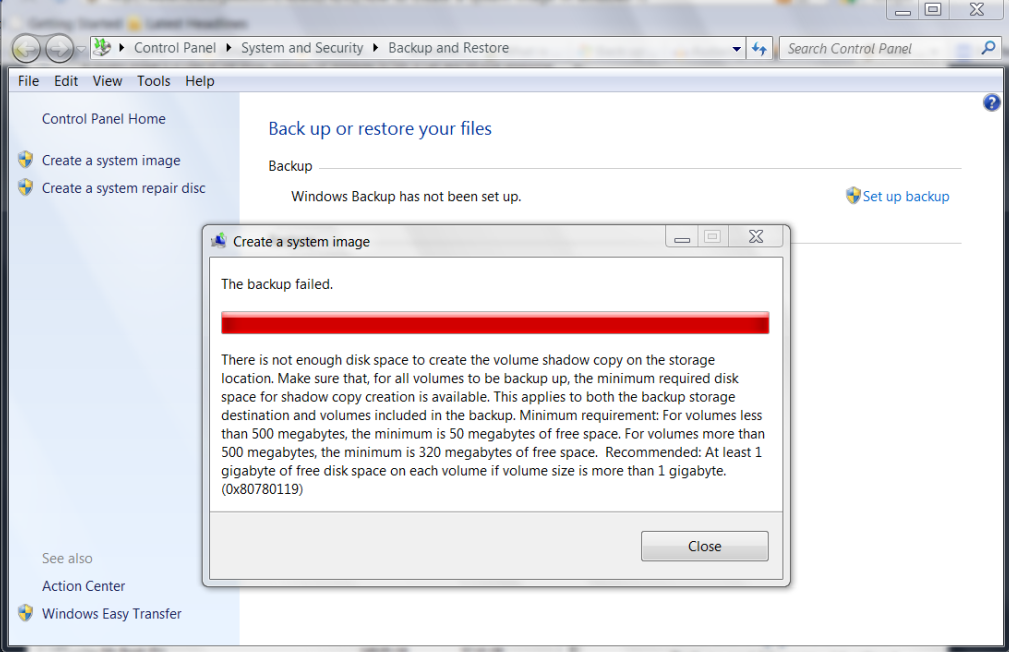


Careful readers will notice the syntax mistake (“Make sure that, for all volumes to be backup up…”). But anyways, the important datum is, I did have more than enough space in the destination partition, so what’s up? I googled and found the answer: somehow the system reserved partition, the 100 Mb one, had decreased in available space, and now it only had about 30 Mb free. Per the message above, partitions with less than 500 Mb need to have at least 50 Mb of free space. So now I know what the error’s cause is. But how do I resolve it without deleting that partition?

I could try assigning the partition a letter and then accessing it, try to change permissions so I could delete files, etc. But which files to delete? Generally speaking deleting files from a system reserved partition is not a good idea.

The answer is simple, in my case anyways. I had the earlier images and I had the original Windows 7 DVD, and that’s all I needed. I booted from the DVD, deleted the reserved small partition, reinstalled Windows 7 from scratch (at which point it created a new system reserved partition) and then once install was complete, I restored the latest image available for the main partition. Then made the small tweaks I wanted to save and created a new image. Worked like a charm. The newly created small reserved partition was now more than 50 Mb free so no more error message when creating the system image.

HTH.

Update:

Found this when searching again for the error code:

“A Workaround Without Repartitioning:

When trying to make a system image of Windows 7, I got error 0x80780119.  After searching this thread (plus others), I found my 100 MB System Reserved partition had grown a large USN journal.  I assigned it drive letter F:\.

Fsutil usn queryjournal F:

Then I ran this command to clear and disable the USN journal on my System Reserved partition:

fsutil usn deletejournal /N /D F:

This freed 48 MB.  The USN journal on my System Reserved partition remained disabled after a reboot, which I verified by re-running the query.  Subsequently, I was able to make a system image without error.”

Link for above workaround: http://social.technet.microsoft.com/Forums/en-US/w7itprogeneral/thread/fce6950d-c06d-4dd0-a850-67022db4fe04/

While the above might have worked for some, if the space used by the USN journal is not enough to give the partition at least 50 Mb of free space, the workaround won’t work.

It’s probably better to create a new primary partition and make it the system volume, as covered in the above thread, that is:

1.       Choose where you want to have your system volume. Few things you need to keep in mind:

a.        System volume can only be created on a primary partition of MBR disk.
b.       If system volume & boot volume are together, then BitLocker feature cannot be used to encrypt volumes on your machine.

2.       Suggest creating a new volume (say F:) on the same disk that contains the boot partition of size of about 490 MB (be careful to keep it less than 500 MB).

3.       Assuming Windows 7 is installed on C: on your machine. From an elevated command-prompt run: bcdboot.exe C:\Windows /s F:

4.       From elevated command-prompt run: DISKPART

5.       From the disk part command-prompt:
DISKPART> select volume F
DISKPART> active

6. Restart

 Notice that the original posting in the forum thread has the command in step 3 as “bcdboot.exe /s C:\Windows /s F:”. That’s incorrect, the first “/s” switch should not be there.

Note: If you follow the above steps you will loose the ability to boot into the recovery environment from your hard disk, i.e. the “Repair your computer” option, normally on top when trying to boot into safe mode, will not be there anymore. Since one can either 1) use the original Windows 7 DVD or 2) Use a recovery disk created at the time the system image was created to get into the this recovery environment, this is not a big deal. But you should aware of it, so that you can at least create a recovery disk if you don’t have it and don’t have an original Windows 7 DVD. However, when I followed these steps, I was able to have the bigger system volume AND the Repair Your computer option at F8:

1. Export the BCD store. From an elevated command prompt do bcdedit /export [filename] 

2. Do the steps 1-6 above. Notice there is no repair option at F8.

3. Import the BCD store, from an elevated command prompt with bcdedit /import [filename]

4. Restart.

5. Conditional: When restarting if you notice an error that won’t allow you to boot, that looks like this:
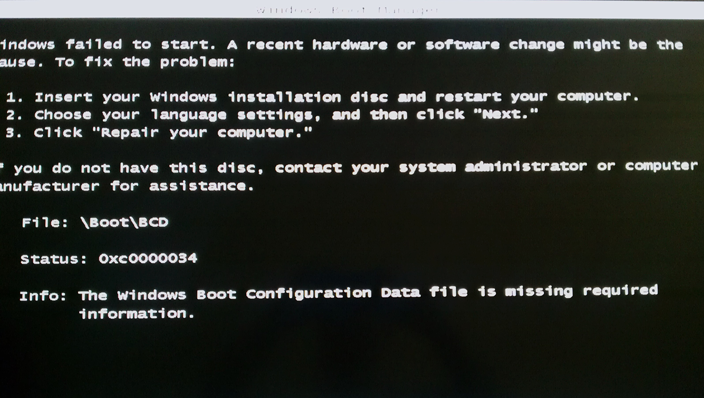
If and only if you see an error like that, insert the Windows 7 DVD and get to the Repair my computer section. Choosing that will automatically detect, make repairs and restart (This error message may specifically occur if afterwards you delete the original 100 Mb partition, even though it’s not the active partition anymore. You don’t need to delete it. And you can always revert to using it as the active partition).

6. You will notice you have the new bigger system volume as the active one AND F8 at booting includes the Repair my computer option.

This is what the BCD store looked like originally:

Windows Boot Manager
--------------------
identifier              {bootmgr}
device                  partition=\Device\HarddiskVolume1
description             Windows Boot Manager
locale                  en-US
inherit                 {globalsettings}
default                 {current}
resumeobject            {7378d097-b723-11e0-a59f-c12e7e982394}
displayorder            {current}
toolsdisplayorder       {memdiag}
timeout                 30

Windows Boot Loader
-------------------
identifier              {current}
device                  partition=C:
path                    \Windows\system32\winload.exe
description             Windows 7
locale                  en-US
inherit                 {bootloadersettings}
recoverysequence        {7378d099-b723-11e0-a59f-c12e7e982394}
recoveryenabled         Yes
osdevice                partition=C:
systemroot              \Windows
resumeobject            {7378d097-b723-11e0-a59f-c12e7e982394}
nx                      OptIn

Windows Boot Loader
-------------------
identifier              {7378d099-b723-11e0-a59f-c12e7e982394}
device                  ramdisk=[C:]\Recovery\7378d099-b723-11e0-a59f-c12e7e982394\Winre.wim,{7378d09a-b723-11e0-a59f-c12e7e982394}
path                    \windows\system32\winload.exe
description             Windows Recovery Environment
inherit                 {bootloadersettings}
osdevice                ramdisk=[C:]\Recovery\7378d099-b723-11e0-a59f-c12e7e982394\Winre.wim,{7378d09a-b723-11e0-a59f-c12e7e982394}
systemroot              \windows
nx                      OptIn
winpe                   Yes

Resume from Hibernate
---------------------
identifier              {7378d097-b723-11e0-a59f-c12e7e982394}
device                  partition=C:
path                    \Windows\system32\winresume.exe
description             Windows Resume Application
locale                  en-US
inherit                 {resumeloadersettings}
filedevice              partition=C:
filepath                \hiberfil.sys
debugoptionenabled      No

Windows Memory Tester
---------------------
identifier              {memdiag}
device                  partition=\Device\HarddiskVolume1
path                    \boot\memtest.exe
description             Windows Memory Diagnostic
locale                  en-US
inherit                 {globalsettings}
badmemoryaccess         Yes

EMS Settings
------------
identifier              {emssettings}
bootems                 Yes

Debugger Settings
-----------------
identifier              {dbgsettings}
debugtype               Serial
debugport               1
baudrate                115200

RAM Defects
-----------
identifier              {badmemory}

Global Settings
---------------
identifier              {globalsettings}
inherit                 {dbgsettings}
                        {emssettings}
                        {badmemory}

Boot Loader Settings
--------------------
identifier              {bootloadersettings}
inherit                 {globalsettings}
                        {hypervisorsettings}

Hypervisor Settings
-------------------
identifier              {hypervisorsettings}
hypervisordebugtype     Serial
hypervisordebugport     1
hypervisorbaudrate      115200

Resume Loader Settings
----------------------
identifier              {resumeloadersettings}
inherit                 {globalsettings}

Device options
--------------
identifier              {7378d09a-b723-11e0-a59f-c12e7e982394}
description             Ramdisk Options
ramdisksdidevice        partition=C:
ramdisksdipath          \Recovery\7378d099-b723-11e0-a59f-c12e7e982394\boot.sdi

This is what it looked like after changing the active partition to the bigger system volume and restarting:

Windows Boot Manager
--------------------
identifier              {bootmgr}
device                  partition=D:
description             Windows Boot Manager
locale                  en-us
inherit                 {globalsettings}
default                 {current}
resumeobject            {d8d48f96-b71d-11e0-b6d6-a887e08237b0}
displayorder            {current}
toolsdisplayorder       {memdiag}
timeout                 30

Windows Boot Loader
-------------------
identifier              {current}
device                  partition=C:
path                    \windows\system32\winload.exe
description             Windows 7
locale                  en-us
inherit                 {bootloadersettings}
osdevice                partition=C:
systemroot              \windows
resumeobject            {d8d48f96-b71d-11e0-b6d6-a887e08237b0}
nx                      OptIn
detecthal               Yes

Resume from Hibernate
---------------------
identifier              {d8d48f96-b71d-11e0-b6d6-a887e08237b0}
device                  partition=C:
path                    \windows\system32\winresume.exe
description             Windows Resume Application
locale                  en-us
inherit                 {resumeloadersettings}
filedevice              partition=C:
filepath                \hiberfil.sys
debugoptionenabled      No

Windows Memory Tester
---------------------
identifier              {memdiag}
device                  partition=D:
path                    \boot\memtest.exe
description             Windows Memory Diagnostic
locale                  en-us
inherit                 {globalsettings}
badmemoryaccess         Yes

EMS Settings
------------
identifier              {emssettings}
bootems                 Yes

Debugger Settings
-----------------
identifier              {dbgsettings}
debugtype               Serial
debugport               1
baudrate                115200

RAM Defects
-----------
identifier              {badmemory}

Global Settings
---------------
identifier              {globalsettings}
inherit                 {dbgsettings}
                        {emssettings}
                        {badmemory}

Boot Loader Settings
--------------------
identifier              {bootloadersettings}
inherit                 {globalsettings}
                        {hypervisorsettings}

Hypervisor Settings
-------------------
identifier              {hypervisorsettings}
hypervisordebugtype     Serial
hypervisordebugport     1
hypervisorbaudrate      115200

Resume Loader Settings
----------------------
identifier              {resumeloadersettings}
inherit                 {globalsettings}

This is what it looked like after importing the original BCD store and restarting:

Windows Boot Manager
--------------------
identifier              {bootmgr}
device                  partition=F:
description             Windows Boot Manager
locale                  en-US
inherit                 {globalsettings}
default                 {current}
resumeobject            {7378d097-b723-11e0-a59f-c12e7e982394}
displayorder            {current}
toolsdisplayorder       {memdiag}
timeout                 30

Windows Boot Loader
-------------------
identifier              {current}
device                  partition=C:
path                    \Windows\system32\winload.exe
description             Windows 7
locale                  en-US
inherit                 {bootloadersettings}
recoverysequence        {7378d099-b723-11e0-a59f-c12e7e982394}
recoveryenabled         Yes
osdevice                partition=C:
systemroot              \Windows
resumeobject            {7378d097-b723-11e0-a59f-c12e7e982394}
nx                      OptIn

Windows Boot Loader
-------------------
identifier              {7378d099-b723-11e0-a59f-c12e7e982394}
device                  ramdisk=[C:]\Recovery\7378d099-b723-11e0-a59f-c12e7e982394\Winre.wim,{7378d09a-b723-11e0-a59f-c12e7e982394}
path                    \windows\system32\winload.exe
description             Windows Recovery Environment
inherit                 {bootloadersettings}
osdevice                ramdisk=[C:]\Recovery\7378d099-b723-11e0-a59f-c12e7e982394\Winre.wim,{7378d09a-b723-11e0-a59f-c12e7e982394}
systemroot              \windows
nx                      OptIn
winpe                   Yes

Resume from Hibernate
---------------------
identifier              {7378d097-b723-11e0-a59f-c12e7e982394}
device                  partition=C:
path                    \Windows\system32\winresume.exe
description             Windows Resume Application
locale                  en-US
inherit                 {resumeloadersettings}
filedevice              partition=C:
filepath                \hiberfil.sys
debugoptionenabled      No

Windows Memory Tester
---------------------
identifier              {memdiag}
device                  partition=F:
path                    \boot\memtest.exe
description             Windows Memory Diagnostic
locale                  en-US
inherit                 {globalsettings}
badmemoryaccess         Yes

EMS Settings
------------
identifier              {emssettings}
bootems                 Yes

Debugger Settings
-----------------
identifier              {dbgsettings}
debugtype               Serial
debugport               1
baudrate                115200

RAM Defects
-----------
identifier              {badmemory}

Global Settings
---------------
identifier              {globalsettings}
inherit                 {dbgsettings}
                        {emssettings}
                        {badmemory}

Boot Loader Settings
--------------------
identifier              {bootloadersettings}
inherit                 {globalsettings}
                        {hypervisorsettings}

Hypervisor Settings
-------------------
identifier              {hypervisorsettings}
hypervisordebugtype     Serial
hypervisordebugport     1
hypervisorbaudrate      115200

Resume Loader Settings
----------------------
identifier              {resumeloadersettings}
inherit                 {globalsettings}

Device options
--------------
identifier              {7378d09a-b723-11e0-a59f-c12e7e982394}
description             Ramdisk Options
ramdisksdidevice        partition=C:
ramdisksdipath          \Recovery\7378d099-b723-11e0-a59f-c12e7e982394\boot.sdi

Finally this is what it looked like when I deleted the original partition, restarted, repaired it with the Win 7 DVD and restarted again:

 Windows Boot Manager
--------------------
identifier              {bootmgr}
device                  partition=D:
path                    \bootmgr
description             Windows Boot Manager
locale                  en-US
default                 {current}
displayorder            {current}
timeout                 30

Windows Boot Loader
-------------------
identifier              {7378d098-b723-11e0-a59f-c12e7e982394}
device                  partition=C:
path                    \Windows\system32\winload.exe
description             Windows 7
locale                  en-US
inherit                 {bootloadersettings}
recoverysequence        {7378d099-b723-11e0-a59f-c12e7e982394}
recoveryenabled         Yes
osdevice                partition=C:
systemroot              \Windows
resumeobject            {7378d097-b723-11e0-a59f-c12e7e982394}
nx                      OptIn

Windows Boot Loader
-------------------
identifier              {7378d099-b723-11e0-a59f-c12e7e982394}
device                  ramdisk=[C:]\Recovery\7378d099-b723-11e0-a59f-c12e7e982394\Winre.wim,{7378d09a-b723-11e0-a59f-c12e7e982394}
path                    \windows\system32\winload.exe
description             Windows Recovery Environment
inherit                 {bootloadersettings}
osdevice                ramdisk=[C:]\Recovery\7378d099-b723-11e0-a59f-c12e7e982394\Winre.wim,{7378d09a-b723-11e0-a59f-c12e7e982394}
systemroot              \windows
nx                      OptIn
winpe                   Yes

Windows Boot Loader
-------------------
identifier              {current}
device                  partition=C:
path                    \Windows\system32\winload.exe
description             Windows 7 Professional (recovered)
locale                  en-US
recoverysequence        {7378d099-b723-11e0-a59f-c12e7e982394}
recoveryenabled         Yes
osdevice                partition=C:
systemroot              \Windows
resumeobject            {4d416039-b722-11e0-8d65-806e6f6e6963}

Resume from Hibernate
---------------------
identifier              {4d416039-b722-11e0-8d65-806e6f6e6963}
device                  partition=C:
path                    \Windows\system32\winresume.exe
description             Windows 7 Professional (recovered)
locale                  en-US
inherit                 {resumeloadersettings}
filedevice              partition=C:
filepath                \hiberfil.sys
debugoptionenabled      No

Resume from Hibernate
---------------------
identifier              {7378d097-b723-11e0-a59f-c12e7e982394}
device                  partition=C:
path                    \Windows\system32\winresume.exe
description             Windows Resume Application
locale                  en-US
inherit                 {resumeloadersettings}
filedevice              partition=C:
filepath                \hiberfil.sys
debugoptionenabled      No

Windows Memory Tester
---------------------
identifier              {memdiag}
device                  partition=D:
path                    \boot\memtest.exe
description             Windows Memory Diagnostic
locale                  en-US

EMS Settings
------------
identifier              {emssettings}
bootems                 Yes

Debugger Settings
-----------------
identifier              {dbgsettings}
debugtype               Serial
debugport               1
baudrate                115200

RAM Defects
-----------
identifier              {badmemory}

Global Settings
---------------
identifier              {globalsettings}
inherit                 {dbgsettings}
                        {emssettings}
                        {badmemory}

Boot Loader Settings
--------------------
identifier              {bootloadersettings}
inherit                 {globalsettings}
                        {hypervisorsettings}

Hypervisor Settings
-------------------
identifier              {hypervisorsettings}
hypervisordebugtype     Serial
hypervisordebugport     1
hypervisorbaudrate      115200

Resume Loader Settings
----------------------
identifier              {resumeloadersettings}
inherit                 {globalsettings}

Device options
--------------
identifier              {7378d09a-b723-11e0-a59f-c12e7e982394}
description             Ramdisk Options
ramdisksdidevice        partition=C:
ramdisksdipath          \Recovery\7378d099-b723-11e0-a59f-c12e7e982394\boot.sdi

Edit: 10/12/2013: OR, you can simply install something like Mini Tool Partition Wizard, and extend the System reserved partition. I did that today, took me 2 minutes. Expanded a 500 MB to 1 GB, I don’t care about space in that computer that much, and it allowed me to save an image.

Testing Security Software

I’ve never been a computer builder particularly. Mind you, I like to specify what my computers have as far as configuration, but I like them built and ready to use when I get them. I don’t build computers for others either. But all that doesn’t mean I cannot build one, and to prove it to myself I recently bought all the necessary components to put a desktop computer together. And put it together I did.

Although that pet project did serve the purpose stated above, the real reason I got it was to have one dedicated machine just for testing purposes. So it’s completely rigged to be able to install test programs, reproduce problems clients might have with their computers, generally mess around with it and then bring it back to its initial state and start over.

With all the newly acquired latitude this new machine gave me, I set out to try a few security suites I’ve always wanted to test-drive. After trying a few, I had to stop for a moment and stare in awe at one of them: Kaspersky Internet Security 2012. Not a typo, it is 2012. I know you must be thinking, how can I test next year’s version? Well, for one, it is normally released before the end of the preceding year. But truth be told, it has actually not been released yet. It will be released in the US in about a month. But that didn’t stop me from getting a hold of a copy and taking it out for a spin.

So, back to KIS 2012.  I performed the standard test of visiting a dozen or so malicious websites (that if you’re not properly protected or don’t know what you’re doing will result in an infected computer). For the most part, KIS’ web filter component did not even allow the web browser to access the malicious links, and the one that the web filter did let go through, resulted in a download of a malicious program. Uh-oh.

Emulating a not-too-wise user, I opened the program and that program created another one and tried to plant itself in the computer (a trojan). I say tried, because then the active protection component stopped it, deleted the downloaded program, rolled back the actions the malicious program had done, and basically thwarted the infection attempt like it was nothing. So at the end the score was like KIS: 12, the bad guys of the Internet: 0. That’s pretty impressive.

KIS 2012 also comes with an anti-spam module that integrates with your email program. I tested it with a “honeypot” (spam trap) email address I have that catches dozens of spam emails every day. Without changing anything in the anti-spam default settings, KIS easily detected and correctly labeled most of the spam.

The only thing I was not able to test was how KIS 2012 behaves with an old, slow computer. Because the test machine is everything but. Otherwise I’d say as far as performance, interface simplicity and so forth, I didn’t have any complaints.

I’ll probably be writing more articles on reviews of other security products in the near future, while laughing at the hackers’ attempts to infect my test machine. So stay tuned for upcoming reviews.

Regarding the Latest IRS Spoof Emails Going Around

I’ve read comments, articles, and emails giving advice about a recent spoof email going around pretending to be from the IRS, a new version of an old trick.

Different opinions have been offered as to what antivirus programs are good in detecting, blocking and eradicating the rogue security software that gets installed in your computer if you do get the infection contained in these IRS emails.

The problem with all those antivirus programs is that detection still relays mainly on a signature/definitions file, and any other method of detection is eluded by these rogue security programs because they’re too similar to a legit program.

To get the full explanation on the above, read my article, written 2 years ago, on a security model that can withstand any such attacks. It was successfully stopping all known attacks then, and it’s still doing it now. And if you want to raise the security bar even more, add virtualization to it.

Hope this helps.

Another big Month of Windows Updates

On Tuesday the 14th, Microsoft is releasing 16 Windows updates to patch a total of 34 vulnerabilities in Windows, Internet Explorer, Office, SQL server, and other products.

Traditionally, even numbered months see more Windows updates than odd-numbered ones, and this one is no exception.

Nine of the sixteen updates are labeled as critical, meaning they’re of the highest importance. The remaining seven have been labeled important, the second highest in Microsoft’s four-step scoring system.

As usual, keep your computer protected against vulnerabilities by making sure your computer is up-to-date. If your computer is set to receive updates automatically, no further action is required by the user. If your system is not set up to download and install updates automatically, it is highly recommended you get the updates downloaded and installed.

If you have any questions on any of the above, feel free to ask.

Computer Basics – Files in Windows

Filenames in Windows have two basic parts. The filename itself, and its extension. Example: letter.doc. “Letter” is the filename, and “doc” the extension. The extension denotes what type of file  it is, and tells the computer what program to use to properly handle that type of file. For example, typically, files with a “doc” extension are handled by Word, the Microsoft Office document editor and word processor. It’s not hard to figure out that “doc” refers to “document”. Similarly, “txt” as an extension refers to “text” files, and so on.  Note: By default most versions of Windows will hide the extension for known types of files. So instead of seeing “letter.doc”, you might only see “letter” as a filename when looking at a list of your documents, and so forth.

But out of the files extensions list, a class stands out because of what it can do. It’s the family of extensions that allow a file to issue commands to the computer. When we talk about opening, executing a program, we’re talking about these files. Extensions that are included in this class are “exe”, “com”, “bat”, “cmd”, to name a few. If you open a “doc” file, it will show you the document. But if you open any of this class of executable files, they will execute (carry out the instructions) within it. Example: when you click on the Internet icon on your computer, the program that displays websites for you will open up in a window. If the Windows default program is the one being used for displaying websites, it is called Internet Explorer. But do you know the actual filename for it? It’s “iexplore.exe”. that’s the full filename for Internet Explorer. Because the extension is “exe”, it executes instructions when you open it. Namely, downloads data from the Internet, displays websites, sends (uploads) data to the Internet, and so forth.

So why am I babbling about all this today? Frankly, I sometimes miss the boat on how basic I need to go with my explanations to make clear why it’s not a good idea to download and open executable files from random sources (websites, etc). And on the other hand also to clarify that downloading an executable file from a website and executing (opening) it are two different things. A client of mine was trying to update one of her programs. She downloaded the executable file that was needed to update (bring to a newer version) what she was using. But she didn’t realize that downloading the file without opening it once downloaded would not perform any updates. She was wondering why she kept on being prompted to update the same program over and over! Once that was clarified and the downloaded file was opened (executed), she did not get prompted to update anymore.

One similar situation: somebody is told to install X program from a trusted website. What does “install” mean? it means getting a copy of the file from the website (download), and then executing the downloaded file, the “installer”. This is just a special type of executable program – Its instructions perform the needed steps to make the program being installed work. So sometimes users are told to install a program and given a website address where the program installer file can be found. They download the file, and happily report the program is installed (just because they downloaded the file that needs to be opened to install the program, but have not opened the file and thus have not installed anything). So, “download” and “install”: Two very different things.

Hope this helps.